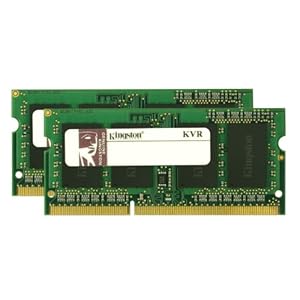

SODIMM Memory Frequency, Capacity, Timings - How to Balance Your Next Laptop Memory Upgrade


Your laptop grinds under the strain of software memory requirements forcing you to purchase a laptop memory upgrade. The question is, how do you go about buying an upgrade that reaps the most benefits? We'll take a look at this below.
SODIMM Memory Frequency
Regardless of the type of memory, be it SDRAM, DDR, DDR2, DDR3 etc. memory frequency pays a pivotal role in its performance. You see, frequency influences the speed at which bytes can be read and written to and from a SODIMM memory module.
The faster the frequency of a SODIMM memory module, the greater the bandwidth available to your system, thus ultimately the software you run. Some software benefits more than others when more bandwidth is available, nevertheless it's generally a good idea to have more of it if possible.
Of course depending on your model of laptop, it might not be possible to make use of higher frequency SODIMM memory modules. The underpinning for this is simple, while a laptop supporting for example PC2-4200 DDR2 SODIMM memory that runs at 533MHz effective can have a higher rated SODIMM memory module of the same type but higher grade installed (i.e. PC2-5300 DDR2 running at 667MHz), the net result will still be memory that runs at a maximum of 533MHz. This is true unless of course the memory controller in that laptop supports the frequency of the faster memory. Normally laptop manufacturers already install the fastest grade of memory during production..
Should you conclude that your laptop does support faster SODIMM memory modules, it may just be worth upgrading all the installed memory to whatever highest grade is supported. Memory frequency is the number one contributor to memory bandwidth therefore by in large performance. Do note how we wrote "all" the installed memory. You see, for your laptop to run at the faster memory frequency, all installed SODIMM memory must meet this specification thus be of the same grade. If your laptop has two SODIMM memory slots (this is the norm) then in practise both SODIMM memory modules must be identical. For example, in a DDR2 memory based laptop this might be PC2-6400, in a DDR laptop PC3200, in a SDRAM laptop PC133 or any other available combination. Simply follow this line of thought and you'll be okay.
SODIMM Memory Capacity
The amount of memory you have installed in your laptop is what generally speaking ultimately defines how smooth software runs. Consequently, while memory frequency is a key factor to SODIMM memory performance, the capacity of memory installed is fundamental for overall system performance.
How much memory you need is dependent on what software you run. Unfortunately, there's no golden rule that magically works for each and every application out there. Fortunately however there's an old principle that lends a helping hand: more memory always helps. Essentially what this translates to in practise is this: install more memory than you need as this way you're far less likely to run into slowdowns, providing of course the slowdowns are the result of low system memory and not, per se, the processor, graphics card, storage device etc.
Does this sound too good to be true? Regrettably yes, for three reasons. Firstly, buying too much laptop memory will likely aid laptop performance at the cost of upsetting your wallet. Secondly, in an ideal world all laptops, be them new or old, would support the currently maximum capacity of available SODIMM memory modules. Obviously the world isn't an ideal place and thus you can only upgrade to the maximum capacity supported by your laptop's memory controller. Thirdly, if you're running a 32bit Operating System on a laptop supporting 4GB or more of memory then just keep in mind that even though the memory will work, applications will not use the full 4GB. This is a limitation of 32bit addressing, only some of this namespace is available to system memory, the rest must be used for addressing other types of memory within your laptop, for example that of the graphics card. To overcome this on laptops that support it, upgrade to a 64bit Operating System.
Starting to sound slightly complicated? Let's break this down into simple English. What you should deduct from this is as follows: buy as much memory as your wallet and laptop allows but consider the limitations of 32bit Operating Systems. If you plan to upgrade to 4GB or more of memory and have a newer laptop then upgrade its Operating System to a 64bit version. If your laptop supports 4GB but only 32bit Operating Systems then just keep in mind that the maximum your applications will likely see visible thus use is around 3.25-3.5GB.
SODIMM Memory Timings
Computer memory feature what's known as timings. These are numerical values which represent delays in how a SODIMM memory module operates. The actual values vary depending on the type of memory (i.e. DDR2) and whether the given SODIMM memory module is mainstream or a performance part. Such delays control all the types of commands that get executed when your computer issues a read, write or copy command. Such timings are stored on each SODIMM memory module in what's known as a SPD (Serial Presence Detect) chip, located on the same PCB (Printed Circuit Board) as the memory chips.
Because memory timings are ultimately delays then one might think it's logical to assume that lower timings are better. This can be answered as true but only to an extent. You see, there is only so much that these timings can be lowered, even if a SODIMM memory module has been binned as a performance part. This is due to synchronisation issues. Memory timings control how slow or how fast a given operation is processed by a SODIMM memory module. If it's set too fast then the outcome may be unstable operation. At the very least this will cause erroneous software behaviour, or if you're less fortunate a system halt.
Since enhanced memory timings can only contribute so much to real-world system performance (circa 5% real-world performance boost), it's really a case of deciding whether you believe the added speed boost (i.e. slightly more memory bandwidth, somewhat lower memory access latency) is enough to warrant the price premium. Various tests over the years suggest no, even if you install "performance" SODIMM memory, you're not likely to feel the difference in any type of software but benchmarks.
Conclusion
There are some important facts to recall from the above. First and foremost memory frequency plays a pivotal role in memory performance, otherwise defined at the speed at which memory read, write and thus copy commands get processed. The higher the memory bandwidth, the more it indirectly influences overall system performance. Secondly, memory capacity is what directly affects the overall speed of your laptop by having a direct influence on computer performance. The more memory you have installed, the far less likely you are to run into slowdowns caused by insufficient memory resources available to the Operating System and other software. Thirdly, memory timings act as an icing on the cake (for a better term) to both memory frequency and capacity.
The above is the theory, but what should you do when getting ready to buy your laptop memory upgrade? Always get the highest frequency of SODIMM memory your laptop supports by determining the highest speed grade supported by its memory controller. Wherever your wallet permits, also try and upgrade to a healthy amount of memory, above what you're bound to currently use thus leaving yourself some headroom. Do however remember that your laptop's memory controller also limits the maximum capacity you can upgrade to. Finally, where feasible (something you will have to deduce yourself), choose a SODIMM memory module(s) with faster (lower) timings - if performance parts aren't available then the most you will lose is about 5% overall system performance.
SODIMM Memory Frequency, Capacity, Timings - How to Balance Your Next Laptop Memory Upgrade
Minecraft Mod Showcase : SMART MOVING!
Video Clips. Duration : 9.25 Mins.
Minecraft Mod Showcase : SMART MOVING!
PARKOUR LIKE YOU'VE NEVER SEEN IT BEFORE! SLIDE UNDER GAPS, SIDE JUMP OBSTACLES, EVEN CLIMB ALONG CEILINGS! UNLEASH YOUR INNER PARKOUR! Download the mod here! (Tell em Sky sent ya!) www.minecraftforum.net Follow me on twitter and twitch.tv and Facebook! www.twitch.tv twitter.com www.facebook.com Music used in this video is by C418 Music used in this intro is by KevinMacleod at www.incompetech.com
Minecraft Mod Showcase : SMART MOVING!
Minecraft Mod Showcase : SMART MOVING!
Minecraft Mod Showcase : SMART MOVING!
Minecraft Mod Showcase : SMART MOVING!
No URL Minecraft Mod Showcase : SMART MOVING!
Troubleshooting Computer Freeze (Lockup) Problems
How familiar does the following sound? Your computer was working fine, but then suddenly started locking up (aka hanging or freezing), rebooting itself (crashing) or shutting down spontaneously? If you know only too well what I am talking about, then read on! Performing the simple steps below can fix the majority of lockup cases.
1. Check for recently installed software or hardware.
If the lockups started to happen after you installed a new peace of hardware, new software program, or new drivers, uninstall it and see if the problem goes away.
2. Run your antivirus program.
One of the first things to do in the case of sudden lockups is to run your antivirus program. Check your antivirus manufacturer's website for updates and latest virus definition files. (This is absolutely necessary, outdated antivirus is not going to be of any use!) If you don't have antivirus software installed - or if updates are unavailable - run one of the web-based antivirus scans that some major antivirus vendors like Trend Micro are offering for free. You can find a comprehensive list of available web-based scans and free antivirus programs on http://www.free-antivirus.info.
3. Run some good spyware removal tool.
If your machine is not infected with any viruses, it is still possible that it has some harmful adware or spyware is present. Download and run some good spyware removal tool such as AdAware or Microsoft AntiSpyware. Check http://www.free-antivirus.info for a list of free spyware removal applications.
4. Check for free hard drive space.
When no viruses are found, check out free hard drive space on drive C:. Make sure there is more than 20% of free space available; low disk space can lead to random lockups.
5. Check for overheating.
Overheating is another known cause of lockups. It can be caused by problems with fans inside the case, dust buildup, or other cooling problems. Make sure the power supply fan and CPU fan are running and free of dust buildup. You can check the temperatures inside the case by running Motherboard monitor
http://mbm.livewiredev.com
- make sure the temperatures are within the preset limits. Be very careful while cleaning inside the computer case (use plastic vacuum crevice tool) and NEVER OPEN THE POWER SUPPLY CASE as it contains high voltage.
6. Check the hard disk.
Check the hard disk - it is possible that its logical structure is corrupted. To check the disk for errors, right-click on the disk C: icon in "My Computer", select the "Tools" tab, check all check boxes in the "Check disk options" field, and press the "Check now" button. It should ask whether you want to schedule the check next time you restart your computer - answer "Yes" and restart your PC. The check will be performed automatically after startup; it can take a while, so be patient. The program will attempt to fix some problems automatically - however, if the hard disk is failing physically, it will need to be replaced. It is also a good idea to run Disk Defragmenter (located in Start Menu > Programs > Accessories > System Tools) to optimize data placement on the hard disk for increased performance and reliability.
7. Check the memory.
Sometimes random lockups can be attributed to the computer memory (RAM) starting to fail. You can test the memory by running Windows Memory Diagnostic that can be downloaded from http://oca.microsoft.com/en/windiag.asp. If memory problems are found, try re-seating the RAM (pull it out and plug it back in). If it doesn't work, replace the defective RAM.
8. Check for other hardware problems (advanced users).
More hardware-related problems can be diagnosed by running hardware tests from the Ultimate Boot CD that can be downloaded from http://www.ultimatebootcd.com. However, you should only use it if you know what are you doing - some programs on that CD can be dangerous when used inappropriately (for example, some of them can wipe the contents of your hard disk).
9. Update Windows and drivers.
Some lockups can be caused by outdated software components - update your windows and drives by running a windows update: http://windowsupdate.microsoft.com (it's good idea to run it regularly).
The above steps will help diagnose and eliminate the most common causes of lockups. Hundreds more of other possible scenarios need to be dealt with on a case-by-case basis, as it all goes down to your particular computer configuration. Asking on PC
troubleshooting forums/newsgroups should help you figure out solutions to not-so-obvious lockup cases.
Troubleshooting Computer Freeze (Lockup) Problems
Minecraft Mod Showcase : SMART MOVING!
Tube. Duration : 9.25 Mins.
Minecraft Mod Showcase : SMART MOVING!
PARKOUR LIKE YOU'VE NEVER SEEN IT BEFORE! SLIDE UNDER GAPS, SIDE JUMP OBSTACLES, EVEN CLIMB ALONG CEILINGS! UNLEASH YOUR INNER PARKOUR! Download the mod here! (Tell em Sky sent ya!) www.minecraftforum.net Follow me on twitter and twitch.tv and Facebook! www.twitch.tv twitter.com www.facebook.com Music used in this video is by C418 Music used in this intro is by KevinMacleod at www.incompetech.com
Minecraft Mod Showcase : SMART MOVING!
Minecraft Mod Showcase : SMART MOVING!
Minecraft Mod Showcase : SMART MOVING!
Minecraft Mod Showcase : SMART MOVING!
No URL Minecraft Mod Showcase : SMART MOVING!
Troubleshooting Computer Freeze (Lockup) Problems
How familiar does the following sound? Your computer was working fine, but then suddenly started locking up (aka hanging or freezing), rebooting itself (crashing) or shutting down spontaneously? If you know only too well what I am talking about, then read on! Performing the simple steps below can fix the majority of lockup cases.
1. Check for recently installed software or hardware.
If the lockups started to happen after you installed a new peace of hardware, new software program, or new drivers, uninstall it and see if the problem goes away.
2. Run your antivirus program.
One of the first things to do in the case of sudden lockups is to run your antivirus program. Check your antivirus manufacturer's website for updates and latest virus definition files. (This is absolutely necessary, outdated antivirus is not going to be of any use!) If you don't have antivirus software installed - or if updates are unavailable - run one of the web-based antivirus scans that some major antivirus vendors like Trend Micro are offering for free. You can find a comprehensive list of available web-based scans and free antivirus programs on http://www.free-antivirus.info.
3. Run some good spyware removal tool.
If your machine is not infected with any viruses, it is still possible that it has some harmful adware or spyware is present. Download and run some good spyware removal tool such as AdAware or Microsoft AntiSpyware. Check http://www.free-antivirus.info for a list of free spyware removal applications.
4. Check for free hard drive space.
When no viruses are found, check out free hard drive space on drive C:. Make sure there is more than 20% of free space available; low disk space can lead to random lockups.
5. Check for overheating.
Overheating is another known cause of lockups. It can be caused by problems with fans inside the case, dust buildup, or other cooling problems. Make sure the power supply fan and CPU fan are running and free of dust buildup. You can check the temperatures inside the case by running Motherboard monitor
http://mbm.livewiredev.com
- make sure the temperatures are within the preset limits. Be very careful while cleaning inside the computer case (use plastic vacuum crevice tool) and NEVER OPEN THE POWER SUPPLY CASE as it contains high voltage.
6. Check the hard disk.
Check the hard disk - it is possible that its logical structure is corrupted. To check the disk for errors, right-click on the disk C: icon in "My Computer", select the "Tools" tab, check all check boxes in the "Check disk options" field, and press the "Check now" button. It should ask whether you want to schedule the check next time you restart your computer - answer "Yes" and restart your PC. The check will be performed automatically after startup; it can take a while, so be patient. The program will attempt to fix some problems automatically - however, if the hard disk is failing physically, it will need to be replaced. It is also a good idea to run Disk Defragmenter (located in Start Menu > Programs > Accessories > System Tools) to optimize data placement on the hard disk for increased performance and reliability.
7. Check the memory.
Sometimes random lockups can be attributed to the computer memory (RAM) starting to fail. You can test the memory by running Windows Memory Diagnostic that can be downloaded from http://oca.microsoft.com/en/windiag.asp. If memory problems are found, try re-seating the RAM (pull it out and plug it back in). If it doesn't work, replace the defective RAM.
8. Check for other hardware problems (advanced users).
More hardware-related problems can be diagnosed by running hardware tests from the Ultimate Boot CD that can be downloaded from http://www.ultimatebootcd.com. However, you should only use it if you know what are you doing - some programs on that CD can be dangerous when used inappropriately (for example, some of them can wipe the contents of your hard disk).
9. Update Windows and drivers.
Some lockups can be caused by outdated software components - update your windows and drives by running a windows update: http://windowsupdate.microsoft.com (it's good idea to run it regularly).
The above steps will help diagnose and eliminate the most common causes of lockups. Hundreds more of other possible scenarios need to be dealt with on a case-by-case basis, as it all goes down to your particular computer configuration. Asking on PC
troubleshooting forums/newsgroups should help you figure out solutions to not-so-obvious lockup cases.
Troubleshooting Computer Freeze (Lockup) Problems
Minecraft Mod Showcase : SMART MOVING!
Video Clips. Duration : 9.25 Mins.
Minecraft Mod Showcase : SMART MOVING!
PARKOUR LIKE YOU'VE NEVER SEEN IT BEFORE! SLIDE UNDER GAPS, SIDE JUMP OBSTACLES, EVEN CLIMB ALONG CEILINGS! UNLEASH YOUR INNER PARKOUR! Download the mod here! (Tell em Sky sent ya!) www.minecraftforum.net Follow me on twitter and twitch.tv and Facebook! www.twitch.tv twitter.com www.facebook.com Music used in this video is by C418 Music used in this intro is by KevinMacleod at www.incompetech.com
Minecraft Mod Showcase : SMART MOVING!
Minecraft Mod Showcase : SMART MOVING!
Minecraft Mod Showcase : SMART MOVING!
Minecraft Mod Showcase : SMART MOVING!
No URL Minecraft Mod Showcase : SMART MOVING!
What Causes Physical Memory Dump? - How to Fix Physical Memory Dump Now
So your computer has been restarting randomly and showing you "Beginning dump of Physical Memory"? This error is also called Blue Screen Error or Blue Screen of Death and it is quite rare. The worst fact about them is that once your computer is affected it will never stop until your computer is fully unusable. Once your computer starts showing signs of this error it will never stop. However there are ways to keep it at bay and if possible, stop it.
What Causes Physical Memory Dump?
First of all to answer the question "What causes physical memory dump?" I will explain to you what actually happens during the error. There are many possible causes of physical memory dump but they are generally divided into three groups:
o Incompatible Device
o Incompatible Program
o System File Error
The first two groups are not hard to understand and normally disappear after the respective device or program is removed. If all your devices and programs are working fine then your windows system is the one causing physical memory dump.
System files or what people often call registry files are the most important files in your windows system. These files regulate your computer and run all your program and devices. Sadly such a complex system file also has many weaknesses. System files are regularly updated when you change settings or do anything with your computer. Given time, they grow and grow and sometimes they are also buggy. Such big system files will congest your computer and create more errors, they simply compound in number. It will reach a point where your computer finds too many problems and is forced to restart itself. When your computer restarts, your windows will create an entry, this process is called physical memory dump.
How to Fix Physical Memory Dump
The first step you should take to fix physical blue screen error is to remove problematic devices. You should do this if your computer starts showing blue screen error right after a new device is installed. The device can be anything starting from a new graphic card or printer or a newly installed Ethernet card. Try to remove the suspicious device and its driver. Check if blue screen error stops. If it persists then you should go to the next step.
Now if your hardware or devices are working fine you might want to check your programs. Have you installed something before blue screen error starts to appear? If yes then try to uninstall the program and see if it fixes the problem. Should the problem reappear then skip to the next procedure.
The last possible cause of physical memory dump is system file error or so called registry error. Repairing them requires a lot of computer knowledge and also very dangerous since one single mistake can lead to a disaster for your PC. The only way to fix blue screen error caused by system file error is by using a registry cleaner program. Simply download them and let it scan your PC. Once it finishes scanning it will prompt to fix your system.
What Causes Physical Memory Dump? - How to Fix Physical Memory Dump Now
Minecraft Mod Showcase : SMART MOVING!
Tube. Duration : 9.25 Mins.
Minecraft Mod Showcase : SMART MOVING!
PARKOUR LIKE YOU'VE NEVER SEEN IT BEFORE! SLIDE UNDER GAPS, SIDE JUMP OBSTACLES, EVEN CLIMB ALONG CEILINGS! UNLEASH YOUR INNER PARKOUR! Download the mod here! (Tell em Sky sent ya!) www.minecraftforum.net Follow me on twitter and twitch.tv and Facebook! www.twitch.tv twitter.com www.facebook.com Music used in this video is by C418 Music used in this intro is by KevinMacleod at www.incompetech.com
Minecraft Mod Showcase : SMART MOVING!
Minecraft Mod Showcase : SMART MOVING!
Minecraft Mod Showcase : SMART MOVING!
Minecraft Mod Showcase : SMART MOVING!
No URL Minecraft Mod Showcase : SMART MOVING!
How To Do Your Own Computer or Laptop Memory Upgrade
Upgrading the memory in your computer or laptop is one of the
easiest and most cost-effective ways of improving your computer's
performance. Still many computer owners shy away from any memory
upgrade for a number of reasons: lack of knowledge, warranty issues,
fear of ruining their computers, compatibility concerns, or just an
innate feeling that the inside of their computer is just some alien
territory they must never venture.
Like a lot of things in life, a computer memory upgrade seems
more complicated than it actually is. Most of the apprehension
comes from a lack of knowledge. Let's face it, the average computer
user may only have a vague idea about RAM, Motherboards, Graphics
Cards and the like.
They know their computer works when they turn it on and that's all
that really matters to them. However, what most people don't realize is
that with a little investment of time and a few dollars, they can make
their computer work better and faster. It's an investment that will
quickly pay for itself; not only will you save time when doing your
daily computer chores, but the overall enjoyment of your computer or
laptop will greatly increase.
It's best to tackle this problem or task with some good information
concerning all the factors involved in the upgrading of your computer's
memory. Let's start with the basics and work from there.
Get Out Of Jail Free Card!
(*Shortcut! Don't have the time or desire to read all the 'ins and
outs' of a RAM or memory upgrade but still want to upgrade your
system. Go to the author's resource box below and click the link.
It will take you to a page where you can find a Memory Advisor tool
which can scan your system and tell you which memory upgrades are
possible with your particular computer or laptop.)
First Step: Know Your RAM
RAM or random access memory. This is what the computer uses to run
applications and data on your computer. You need it to run your
computer's OS operating system, your need it for handling graphics,
files, web-browsing, e-mail and multi-tasking. RAM is vital to the
operation of your computer. As a general rule, the higher the amount
of RAM you have, the faster your computer will work or run.
To complicate things somewhat, there are many types of RAM. The type
of RAM in your computer or laptop may depend on the year it was
made.
From mid-2004 a lot of the computers have DDR2 (double data rate,
second generation) SDRAM (Synchronous Dynamic RAM). Before that time
many computers had DDR (double data rate, first generation) SDRAM.
Most older systems use SDR (single data rate) SDRAM, fast page mode
(FPM), or extended data out (EDO).
To complicate things even further, most of the types of RAM comes
in different speeds!
DDR2 SDRAM is a new standard that can boost conventional SDRAM
memory up to speeds well over 200MHz and beyond. For example, the
new IBM ThinkPad T43, thanks to the Sonoma Chipset or platform has
533MHz DDR 2 SDRAM.
This is much better than standard SDRAM which tops out around 150-166MHz
and DDR SDRAM which starts at 200MHz and goes up to around 400MHz.
Keep in mind, DRAM means Dynamic Random Access Memory and SDRAM means
Synchronous Dynamic RAM.
And to really confuse you, having a faster RAM speed does not (by itself)
make your computer go faster, you must upgrade or increase the AMOUNT of
RAM in your computer system to increase performance. Also keep in mind
your computer was made to accept a specific memory speed and there's no
benefit from going beyond that limit.
It's usually recommended that you get the fastest speeds for your
system, this will permit for better compatibility and make it easier
for future upgrades.
Second Step: Know Your Machine
Without a doubt, compatibility is the most important factor in
buying a memory upgrade for your laptop or computer. It's essential
that any upgrade be compatible with your computer or machine, i.e.
otherwise it just won't work.
Therefore, you have to know the amount and kind of RAM you have
in your computer or laptop. The best way to find this is to check
your owner's manual. It should tell you the type of RAM your system
is using, it should also tell you the maximum amount of RAM your
system can take.
Obviously, an easy way to make sure you don't exceed the maximum
memory on your computer, just subtract your current memory from
the allowed limit listed in your system specifications. For instance,
if your computer takes a maximum of 512MB of RAM and you have 256MB
installed, then you can upgrade to an additional 256MB of RAM
(512MB - 256MB = 256MB).
You should also be aware that DDR is not backward/forward-compatible,
which means that if you're upgrading a computer that doesn't have
DDR technology, it won't take a DDR upgrade.
Likewise, DDR2 is not backward-compatible, which means if your system
doesn't have DDR2 technology, it won't accept a DDR2 upgrade.
So check your system very carefully and see what kind of RAM it has and
the maximum amount of RAM it will take. You must also check to see if
your computer's warranty will be null and void if you install the RAM
yourself! Some manufacturers actually seal your computer case and you
must have an authorized technician to install your RAM.
Third Step: How Much RAM Do You Need?
It's generally agreed that you need at least 256MB for Windows XP and
Mac OS X. You will only need 128MB for other operating systems in Windows
or Mac. Most general office work and heavy multi-tasking may need 512MB of
RAM. Gamers or Professional Graphic workers usually need the most RAM -
up to 2GB or more of RAM.
Please note, installing a faster speed RAM (as noted earlier) will not
increase the speed of your computer or laptop. The only way to increase
the speed of your computer is to increase the AMOUNT of RAM you have
in your system. Going from 256MB of RAM to 512MB of RAM will speed up
your computer. Going to 2GB of RAM will make it go even faster. Benchmark
testing has shown that you can get from 28% up to 43% increase in
performance, depending on the amount of RAM increase.
However, there's always a spoiler, other parts of your computer must be
able to handle this increase. Your computer will only go as fast as your
slowest link. In other words, you may have to upgrade other elements in
your computer to receive the benefits of a memory upgrade. Make sure you
check this factor first before your make your memory upgrade. Otherwise,
you may just be wasting your time and money.
Another consideration is the Memory of your Video or Graphics Card
in your system. The amount of VRAM is the major factor in your display's
resolution and color depth. A faster and more powerful upgrade in your
Graphics Card will give you increased performance especially for handling
graphics and videos, as in 3D Gaming.
Fourth Step; Ordering Your RAM
There are over 110,000 different memory upgrades you can choose from!
There are many places to order your RAM, from your local computer store
to online sites. If you're ordering online, one the most highly rated
sites is Crucial.com - these people are memory experts and know their
memory! They are a part of Micron, one of the largest DRAM makers
in the world.
Perhaps, what's more important, Crucial has very high consumer
satisfaction ratings from other third party rating sites. This gives
you an unbiased recommendation or indication that the service and
product is top-notch. Even more important, they have the
Crucial Memory Advisor(TM) tool which will scan your computer system
and tell you what memory upgrades are available. They also back
up their products with a lifetime warranty.
Some other thing to keep in mind when ordering your RAM. Many desktop
systems or computers use what's called "non-parity" memory which
means it does not need ECC (error correction code) or "parity"
modules.
Registered, buffered, and unbuffered are other terms that
will come up -- they refer to how a certain memory module
processes signals. Usually, most PC systems take unbuffered
RAM and rely on the motherboard controller to help process
memory. Registered RAM is used mostly in servers.
Fifth Step: Installing Your New Memory or RAM
If you order your RAM online, you will receive your RAM module in
an anti-static bag, along with detailed instructions on how to install
your RAM. On modern system boards, RAM is installed on SIMM or DIMM
modules (SODIMM in notebooks).
One of the most important things to do when installing RAM or working
with your Computer is to 'Ground Yourself' to make sure you
don't 'Shock' your computer with static electricity. You can take
some simple precautions to prevent this from happening. If you have
wrist straps designed to prevent shocks, you need to wear them.
If you don't have wrist straps, here's a simple way to
ground yourself:
You should turn off your computer, monitor, plus all accessories
(speakers, printer, scanner). Unplug your computer and any
accessories. Then quickly touch an unpainted part of your computer
case and keep your feet planted in one position while installing
your RAM. If you walk around, repeat the process above before you
touch any internal parts of your laptop or computer.
Open up the back of your computer or laptop. Depending on your model,
you may need a screwdriver. If you have a laptop or notebook, the memory
slots are sometimes located under the keyboards. Most times, it's in the
back of your laptop; check your manual for the location of your laptop's
memory.
Depending on your upgrade, you may have to replace your RAM module with
the New one, in other cases, you will be adding any extra module or
two. Follow the specific directions that come with your RAM upgrade; installing the RAM is only a matter of a Push and a snap! Your RAM
upgrade will snap into their memory slots without too much difficulty.
Before you close the case, turn your computer or laptop on to see if
your new RAM is installed. You will see it on the startup screens or
you can easily check it by going into 'My Computer' under properties, if you're using Windows.
Basically, this is how to do your own computer or laptop memory
upgrade. There may be other elements or aspects you might want
to check out before installing your new RAM but follow the guidelines
above and the detailed instructions that come with your RAM module or
modules and you should be OK.
If you have any trouble, click the link in the resource box below. They
have extensive detailed guides that you can follow. If may be a good
idea to check out these guides first, before you order your memory, to
see the kind of procedure you will have to do to install your RAM.
Realizing how simple this procedure is may relieve some of your initial
fears concerning a memory upgrade for your system.
This site also has 'live' help where you can chat to Expert Memory
Technicians if you are still having problems.
How To Do Your Own Computer or Laptop Memory Upgrade
Puppies vs Cat
Tube. Duration : 0.67 Mins.
Puppies vs Cat
Lots of cute white puppies "suffocating" a cat which tries to escape them
Puppies vs Cat
Puppies vs Cat
Puppies vs Cat
Puppies vs Cat
No URL Puppies vs Cat
What Causes Physical Memory Dump? - How to Fix Physical Memory Dump Now
So your computer has been restarting randomly and showing you "Beginning dump of Physical Memory"? This error is also called Blue Screen Error or Blue Screen of Death and it is quite rare. The worst fact about them is that once your computer is affected it will never stop until your computer is fully unusable. Once your computer starts showing signs of this error it will never stop. However there are ways to keep it at bay and if possible, stop it.
What Causes Physical Memory Dump?
First of all to answer the question "What causes physical memory dump?" I will explain to you what actually happens during the error. There are many possible causes of physical memory dump but they are generally divided into three groups:
o Incompatible Device
o Incompatible Program
o System File Error
The first two groups are not hard to understand and normally disappear after the respective device or program is removed. If all your devices and programs are working fine then your windows system is the one causing physical memory dump.
System files or what people often call registry files are the most important files in your windows system. These files regulate your computer and run all your program and devices. Sadly such a complex system file also has many weaknesses. System files are regularly updated when you change settings or do anything with your computer. Given time, they grow and grow and sometimes they are also buggy. Such big system files will congest your computer and create more errors, they simply compound in number. It will reach a point where your computer finds too many problems and is forced to restart itself. When your computer restarts, your windows will create an entry, this process is called physical memory dump.
How to Fix Physical Memory Dump
The first step you should take to fix physical blue screen error is to remove problematic devices. You should do this if your computer starts showing blue screen error right after a new device is installed. The device can be anything starting from a new graphic card or printer or a newly installed Ethernet card. Try to remove the suspicious device and its driver. Check if blue screen error stops. If it persists then you should go to the next step.
Now if your hardware or devices are working fine you might want to check your programs. Have you installed something before blue screen error starts to appear? If yes then try to uninstall the program and see if it fixes the problem. Should the problem reappear then skip to the next procedure.
The last possible cause of physical memory dump is system file error or so called registry error. Repairing them requires a lot of computer knowledge and also very dangerous since one single mistake can lead to a disaster for your PC. The only way to fix blue screen error caused by system file error is by using a registry cleaner program. Simply download them and let it scan your PC. Once it finishes scanning it will prompt to fix your system.
What Causes Physical Memory Dump? - How to Fix Physical Memory Dump Now
Minecraft Mod Showcase : SMART MOVING!
Video Clips. Duration : 9.25 Mins.
Minecraft Mod Showcase : SMART MOVING!
PARKOUR LIKE YOU'VE NEVER SEEN IT BEFORE! SLIDE UNDER GAPS, SIDE JUMP OBSTACLES, EVEN CLIMB ALONG CEILINGS! UNLEASH YOUR INNER PARKOUR! Download the mod here! (Tell em Sky sent ya!) www.minecraftforum.net Follow me on twitter and twitch.tv and Facebook! www.twitch.tv twitter.com www.facebook.com Music used in this video is by C418 Music used in this intro is by KevinMacleod at www.incompetech.com
Minecraft Mod Showcase : SMART MOVING!
Minecraft Mod Showcase : SMART MOVING!
Minecraft Mod Showcase : SMART MOVING!
Minecraft Mod Showcase : SMART MOVING!
No URL Minecraft Mod Showcase : SMART MOVING!
PARKOUR LIKE YOU'VE NEVER SEEN IT BEFORE! SLIDE UNDER GAPS, SIDE JUMP OBSTACLES, EVEN CLIMB ALONG CEILINGS! UNLEASH YOUR INNER PARKOUR! Download the mod here! (Tell em Sky sent ya!) www.minecraftforum.net Follow me on twitter and twitch.tv and Facebook! www.twitch.tv twitter.com www.facebook.com Music used in this video is by C418 Music used in this intro is by KevinMacleod at www.incompetech.com


Tags:

Laptop Memory
What Causes Physical Memory Dump? - How to Fix Physical Memory Dump Now
What Causes Physical Memory Dump? - How to Fix Physical Memory Dump Now
What Causes Physical Memory Dump? - How to Fix Physical Memory Dump Now
Lots of cute white puppies "suffocating" a cat which tries to escape them
Tags:
Laptop Memory
How To Do Your Own Computer or Laptop Memory Upgrade
How To Do Your Own Computer or Laptop Memory Upgrade
How To Do Your Own Computer or Laptop Memory Upgrade
PARKOUR LIKE YOU'VE NEVER SEEN IT BEFORE! SLIDE UNDER GAPS, SIDE JUMP OBSTACLES, EVEN CLIMB ALONG CEILINGS! UNLEASH YOUR INNER PARKOUR! Download the mod here! (Tell em Sky sent ya!) www.minecraftforum.net Follow me on twitter and twitch.tv and Facebook! www.twitch.tv twitter.com www.facebook.com Music used in this video is by C418 Music used in this intro is by KevinMacleod at www.incompetech.com
Keywords:
Laptop Memory
What Causes Physical Memory Dump? - How to Fix Physical Memory Dump Now
What Causes Physical Memory Dump? - How to Fix Physical Memory Dump Now
What Causes Physical Memory Dump? - How to Fix Physical Memory Dump Now
PARKOUR LIKE YOU'VE NEVER SEEN IT BEFORE! SLIDE UNDER GAPS, SIDE JUMP OBSTACLES, EVEN CLIMB ALONG CEILINGS! UNLEASH YOUR INNER PARKOUR! Download the mod here! (Tell em Sky sent ya!) www.minecraftforum.net Follow me on twitter and twitch.tv and Facebook! www.twitch.tv twitter.com www.facebook.com Music used in this video is by C418 Music used in this intro is by KevinMacleod at www.incompetech.com
Tags:
Laptop Memory
Troubleshooting Computer Freeze (Lockup) Problems
Laptop Memory
PARKOUR LIKE YOU'VE NEVER SEEN IT BEFORE! SLIDE UNDER GAPS, SIDE JUMP OBSTACLES, EVEN CLIMB ALONG CEILINGS! UNLEASH YOUR INNER PARKOUR! Download the mod here! (Tell em Sky sent ya!) www.minecraftforum.net Follow me on twitter and twitch.tv and Facebook! www.twitch.tv twitter.com www.facebook.com Music used in this video is by C418 Music used in this intro is by KevinMacleod at www.incompetech.com
Keywords:
Laptop Memory
Troubleshooting Computer Freeze (Lockup) Problems
Laptop Memory
PARKOUR LIKE YOU'VE NEVER SEEN IT BEFORE! SLIDE UNDER GAPS, SIDE JUMP OBSTACLES, EVEN CLIMB ALONG CEILINGS! UNLEASH YOUR INNER PARKOUR! Download the mod here! (Tell em Sky sent ya!) www.minecraftforum.net Follow me on twitter and twitch.tv and Facebook! www.twitch.tv twitter.com www.facebook.com Music used in this video is by C418 Music used in this intro is by KevinMacleod at www.incompetech.com
Tags:
Laptop Memory
SODIMM Memory Frequency, Capacity, Timings - How to Balance Your Next Laptop Memory Upgrade
Laptop Memory

No comments:
Post a Comment